How TO Fix Astute Beta Server App Not Installed Error (2026)
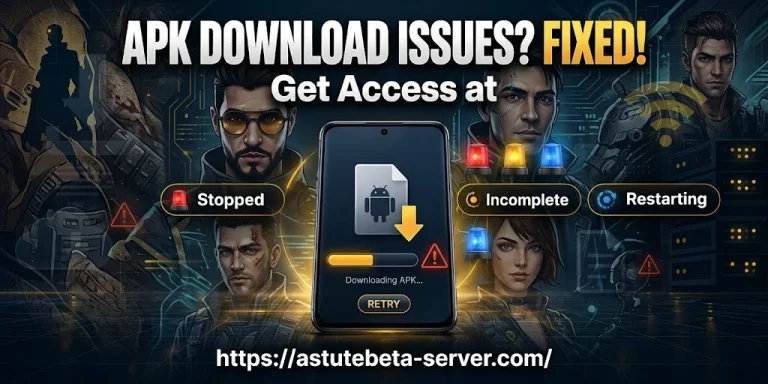
Android shows “App Not Installed” when it stops an APK before the app can start. The message is short and does not tell you why it failed. That makes it confusing. You may try the same file again and again, and still get the same error. This usually happens because of a small problem that is easy to fix. The file may be broken or only half downloaded. Sometimes the phone itself blocks the install for safety. Do not worry. Most cases can be solved in a few minutes.
The most common causes are low storage, the wrong file type, a phone that is too old, or an older version of the app already on your device. Sometimes a missing permission is the reason. This guide shows each fix in simple steps. Check them in order, and start with the easiest one first. Do not turn off security settings just to force the install. Try one fix at a time, and restart the phone if needed. Read the table below to find your likely cause quickly. By the end, you will know what blocked the install and how to solve it.
Why You See This Error
Android does not tell you the exact reason. The message is short and vague. Use this table to find the likely cause.
| What you see | Likely cause | Check first |
|---|---|---|
| Install stops or fails | Broken or partial download | File size |
| Install fails at once | Not enough storage | Free space |
| Install is blocked | Permission is off | Install unknown apps setting |
| New file will not update old app | Version or signature conflict | Installed version |
| File says it cannot be parsed | Wrong or damaged file | File type and hash |
| Phone is not supported | Old Android or wrong CPU type | Android version and CPU |
| Security warning appears | Play Protect check | Warning text and file source |
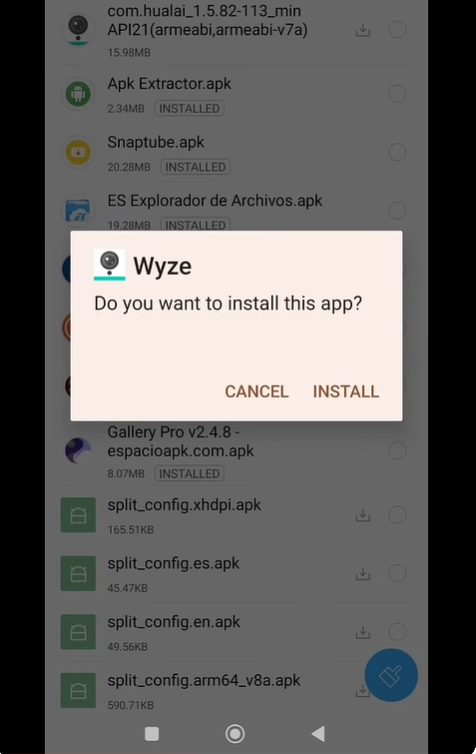
Get the Right File and Finish the Download
A broken file is one of the most common causes. Large APK files can stop halfway if your internet drops. Check these details on the Astute Beta Server download page and on your phone:
If your file is much smaller than the listed size, delete it. Download it again on a stable connection. Use one trusted source only. Mixing files from many sites makes it hard to find the problem.
Free Up Storage
Your phone needs more free space than the file size. Android also needs room to unpack the file and to save app data. Open Settings → Storage and look at the free space. Then clear space:
As a simple rule, keep at least two to three times the APK size free. The exact need can change from app to app.
Check Your Android Version and CPU Type
Every app has a lowest Android version it can run on. Find yours in Settings → About phone → Android version. The menu name can change on some phones. The CPU type also matters. Most phones use ARM chips. Some APK files are built only for certain chip types, such as arm64-v8a or armeabi-v7a. A file built for the wrong chip will not install. Check the download page for the version and chip type the file supports.
Allow Installs From Your Browser or File Manager
Apps outside Google Play need your permission to install. On Android 8 and newer, you give this permission to the app that opens the file.
The menu names can differ by phone brand. You can turn the permission off after the install.
Fix an Old-Version Conflict
An old copy of the app can block the new file. There are three common reasons:
Try this order:
Warning: Uninstalling can erase local app data. Save anything important first, if the app lets you.
Check the File Type
Not every download ending in a game name is a normal APK. Some come in other forms: A bundle opened as a normal APK often fails with a parse error. Read the download page to see which type you have.
| Type | What it is | How to install |
|---|---|---|
| .apk | One install file | Tap it to install |
| .xapk or .apks | A bundle of several files | Use a split-APK installer app |
| .apk plus an OBB folder | App plus extra data | Install the APK, then copy the OBB to the right folder |
Keep Google Play Protect On
Do not turn off Play Protect just to make a file install. It checks apps for harmful behavior. If a warning appears, read it. Then ask yourself:
If the App Installs but Does Not Open or Log In
If the app icon appears, the install worked. The error is now a different problem. Look at these causes instead:
Do not uninstall the app each time a server error shows. Reinstalling will not fix a server that is down. If the app opens but feels slow, read our guide on how to reduce lag in Astute Beta Server. You can delete the APK file after the install. This does not remove the app. The APK is only the installer.
Frequently Asked Questions (FAQ)
Why does Astute Beta Server say “App Not Installed”?
The file may be broken, your storage may be low, or an old version of the app may clash with the new one. A missing install permission or an old Android version can also cause it.
Why will the APK not install on my phone?
Check the basics first. Make sure the download finished, you have enough free space, and your Android version and CPU type match the file. Then check the install permission.
How much storage do I need?
You need more free space than the file size. Android needs room to unpack the file and save app data. Check the file size on the download page, then keep extra space free.
Can a half-downloaded file cause this error?
Yes. A broken file is a very common cause. Compare the file size and hash with the source, then download it again.
Why will the new file not install over the old app?
The signature may be different, or the new version may be older than the one on your phone. Android blocks both cases.
Should I uninstall the old app first?
Only if the update fails. Uninstalling can erase app data, so save what you can first.
Can the wrong CPU type stop the install?
Yes. Some files are built only for certain chip types. A file made for the wrong chip will not install.
What if my download is an XAPK or has an OBB folder?
These are not normal APK files. An XAPK needs a split-APK installer app. An OBB folder must be copied to the right place after the install.
Should I turn off Google Play Protect?
No. Read the warning and check the file first. If you are unsure, do not install it.
Why does the app install but not open?
The install worked, so the problem is now different. Low storage, low memory, missing game data, or a slow network can be the cause. If the app opens but feels slow, read our guide on how to reduce lag in Astute Beta Server.
Will reinstalling fix every error?
No. It helps with a damaged or clashing install. It does not fix login, server, or network problems.
Can I delete the APK file after I install the app?
Yes. The APK is only the installer. Deleting it does not remove the app.
Conclusion
The “App Not Installed” error looks scary, but it is usually easy to fix. In most cases, the cause is a broken download, low storage, the wrong file type, a missing permission, or an old version of the app that clashes with the new one.
Start with the simple checks. Make sure the file is complete and comes from a source you trust. Free up space. Check your Android version and CPU type. Allow installs from your browser or file manager. Then deal with any old version on your phone. If nothing works, use ADB to read the exact error code.
Do not turn off Google Play Protect just to force the install. Apps from outside Google Play can carry risks, so check the file size and hash, and scan the file before you install it. Once the app is installed, a new problem with loading, login, or lag is a different issue. For slow performance, read our guide on how to reduce lag in Astute Beta Server.
Conclusion
Lag in the Astute Beta Server usually comes from weak internet, low RAM, high graphics, or a busy server. The good news is that you can fix most of it yourself. Use a stable network and restart your modem when needed. Close extra apps and keep some storage free. Lower your graphics and turn off notifications before you play. Also keep your phone and game updated.
Try these steps one by one and see which one helps most. Sometimes the lag comes from the server side, and that is out of your control. Be patient in that case. For more guides, visit Astute Beta Server and enjoy smooth matches.