Astute Beta Server Download Failed? Causes and Fixes
You click the download button. You wait. Then an error pops up. The download failed. This is annoying. But it is also common. Most download problems have simple causes. Most have simple fixes too.
In this article, you will learn why the Astute Beta Server download fails. You will also learn how to fix each problem step by step. You do not need to be a tech expert. Just follow along.
What Does “Download Failed” Mean?
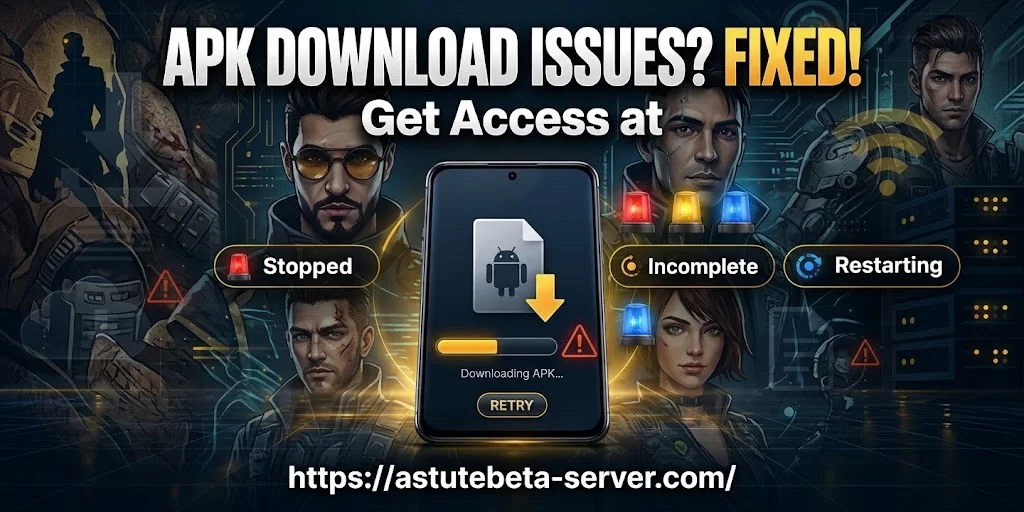
A download fails when your device cannot finish getting a file from a server. The file may stop halfway. It may never start. It may finish but be broken. Think of it like a phone call. If the signal drops, the call ends. A download works the same way. If the link breaks, the download stops. The problem can be on your side. It can be on the server side. Or it can be in between. Let’s look at each cause.
Cause 1: Weak or Unstable Internet
This is the most common cause. A beta server file can be large. A big file needs a steady connection for a long time. Wi-Fi can drop for a second. That is enough to break a download. Slow speeds can also cause a timeout. The server gives up waiting.
How to fix it:
Then try the download again.
Cause 2: The Server Is Busy or Down
Beta servers are often small. They may not handle many users at once. If too many people download at the same time, the server slows down. Sometimes it crashes.
The server may also be down for repairs. Beta teams often fix bugs and restart servers.
How to fix it:
If the server is down, you cannot fix it yourself. You just have to wait.
Cause 3: Not Enough Storage Space
Your device needs free space to save the file. It often needs more than the file size. The download tool may need room to unpack the files too. If your drive is almost full, the download will stop. You may see an odd error. Sometimes you see no clear message at all.
How to fix it:
Aim to have at least double the file size free. That gives you a safe buffer.
Cause 4: Firewall or Antivirus Blocking
Your firewall protects your device. Your antivirus does the same. But they can make mistakes. They may see a beta file as a threat. This is called a false positive.
Beta files are not always signed or well known. So security tools may block them. The download then fails or the file vanishes.
How to fix it:
Be careful here. Only do this if you trust the source. Get the file only from the official site. Never turn off protection for a link from a stranger.
Cause 5: Browser Problems
Your browser can cause trouble. An old cache can break a download. A bad extension can block it. Some browsers also stop downloads they think are unsafe.
How to fix it:
If the download works in another browser, you know the first browser is the problem.
Cause 6: VPN or Proxy Interference
A VPN hides your location. It sends your data through another server. This can slow things down. Some servers also block VPN traffic.
A proxy can cause the same issue. The server may not trust the connection.
How to fix it:
Once the download finishes, you can turn the VPN back on.
Cause 7: Corrupted or Incomplete File
Sometimes the download looks finished. But the file is broken. A few bits got lost on the way. This is called a corrupted file. You may see errors like “file is damaged” or “cannot open archive.” Or the install may stop partway.
How to fix it:
Do not try to repair a bad file. Downloading a fresh copy is faster and safer.
Cause 8: Outdated System or Missing Software
If your system is too old, the download or install can fail.
How to fix it:
A fresh restart solves many odd problems. It is a simple step, but do not skip it.
Cause 9: Wrong Link or Expired Link
Beta links often change. The team may release a new build. The old link may then stop working. You may see a “404 not found” error. Links from old posts and forums are the usual problem.
How to fix it:
Some betas need a login or a key. If your access ended, the download will fail. In that case, contact the team.
Cause 10: Date, Time, and Security Certificate Errors
This one surprises many people. If your device date and time are wrong, secure sites may reject you. The security certificate looks invalid. The download then fails.
How to fix it:
Cause 11: Download Manager or Launcher Errors
Some beta servers use a launcher. The launcher downloads the files for you. If the launcher is broken, the download fails.
How to fix it:
A Quick Step-by-Step Checklist
Not sure where to start? Follow this order. It goes from easiest to hardest.
Most problems get solved by step six. So do not rush to the end.
How to Prevent Download Failures
A little care can save you time later. Here are some good habits.
Final Thoughts
A failed download feels bad. But it is rarely a big problem. In most cases, the cause is simple. It may be a weak connection, a full drive, or a blocked file. Start with the easy fixes. Check your internet. Check your space. Check the server status. Then move on to the next steps. Work slowly and test after each change. If the server is down, be patient. The team will bring it back soon.
With the tips in this guide, you should be able to fix the Astute Beta Server download error. Stay calm, follow the steps, and try again. You will likely be up and running in no time.